Usage
Installation
To use PySiDoCast, first install it using pip:
(.venv) $ pip install pysidocast
Creating a Scene
To create a new scene, use pysidocast.Scene() :
- class pysidocast.Scene
Scene Object
For example:
>>> import pysidocast
>>> scene = pysidocast.Scene()
Loading Surfaces into the Scene
First, let’s load a surface using pygame:
>>> import pygame
>>> pygame.init()
>>> screen = pygame.display.set_mode((600, 600))
>>> image = pygame.image.load("image.png").convert_alpha()
You can then add surfaces to the scene.
Note
Each surface should be added only once in the scene.
Make sure that this code isn’t in the Main Loop.
If for any reason you need to add a surface multiple times
(for example, if you want to change the position of the surface over time),
then set the rm argument to True to remove the surface after each render.
- Scene.add_triangle(image, (x1, y1, z1), (x2, y2, z2), (x3, y3, z3), alpha=1.0, rm=False, reverse=False)
Adds a triangle to the caster.
- Parameters:
image (pygame.Surface) – The pygame surface to display in the scene.
A (tuple) – The position in space (x,y,z) of the first vertex.
B (tuple) – The position in space (x,y,z) of the second vertex.
C (tuple) – The position in space (x,y,z) of the third vertex.
alpha (float) – The alpha value of the surface (1.0 by default).
rm (bool) – Whether or not the surface should be remove from the scene after being displayed (False by default).
reverse (bool) – Whether or not the surface should be displayed in reverse (False by default).
- Raises:
ValueError – If the given image is not a valid surface.
Note
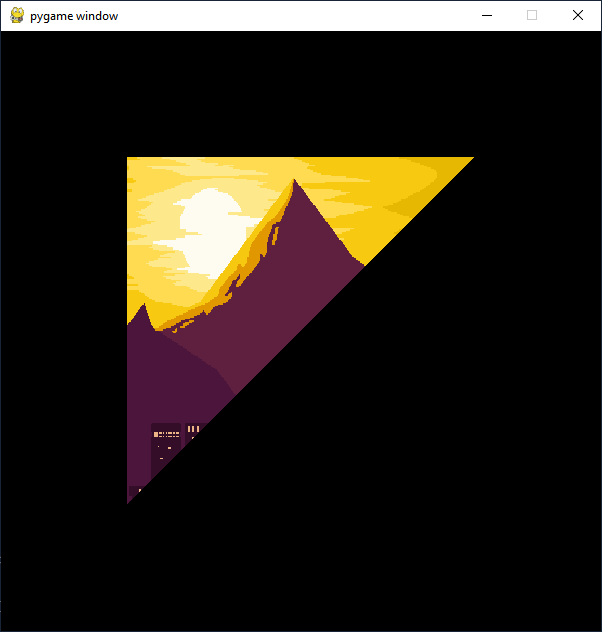
The add_triangle() method display a triangle into the scene. To display a quadrilateral, you should use the add_surface() method.
For example:
>>> scene.add_triangle(image, (-1, 2, 1), (1, 2, 1), (-1, 0, 1))
>>> scene.render(screen, (0, 1, 0), 0, 90, 60)
>>> pygame.display.update()
- Scene.add_surface(image, (x1, y1, z1), (x2, y2, z2), (x3, y3, z3), alpha=1.0, rm=False)
Adds a quadrilateral (diamond shaped) to the caster.
- Parameters:
image (pygame.Surface) – The pygame surface to display in the scene.
A (tuple) – The position (x,y,z) of the first vertex.
B (tuple) – The position (x,y,z) of the second vertex.
C (tuple) – The position (x,y,z) of the third vertex.
alpha (float) – The alpha value of the surface (1.0 by default).
rm (bool) – Whether or not the surface should be remove from the scene after being displayed (False by default).
- Raises:
ValueError – If the given image is not a valid surface.
Note
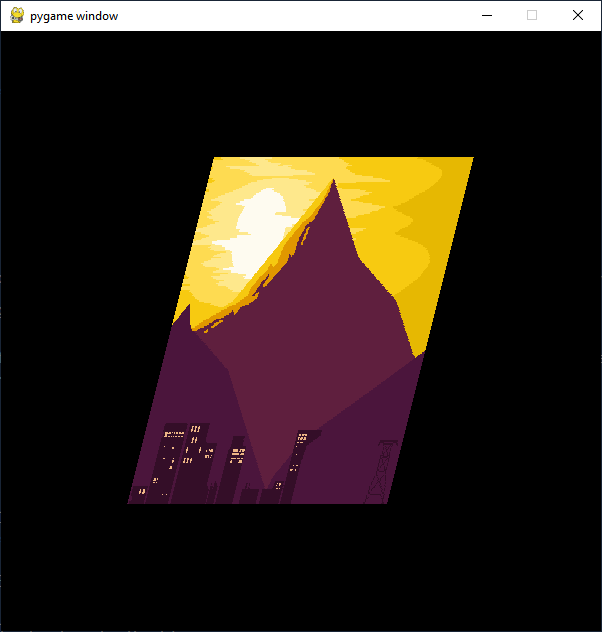
With the add_surface() method, the fourth vertex of the quadrilateral is automatically calculated to make a diamond shape.
For example:
>>> scene.add_surface(image, (-0.5, 2, 1), (1, 2, 1), (-1, 0, 1))
>>> scene.render(screen, (0, 1, 0), 0, 90, 60)
>>> pygame.display.update()
- Scene.add_quad(image, (x1, y1, z1), (x2, y2, z2), (x3, y3, z3), (x4, y4, z4), alpha=1.0, rm=False)
Adds a quad to the scene.
- Parameters:
image (pygame.Surface) – The pygame surface to display in the scene.
A (tuple) – The position in space (x,y,z) of the first vertex.
B (tuple) – The position in space (x,y,z) of the second vertex.
C (tuple) – The position in space (x,y,z) of the third vertex.
D (tuple) – The position in space (x,y,z) of the fourth vertex.
alpha (float) – The alpha value of the surface (1.0 by default).
rm (bool) – Whether or not the surface should be remove from the scene after being displayed (False by default).
raise ValueError: If the given image is not a valid surface.
Note
The add_quad() method is usefull for custom shapes, but most of the time it’s easier to use add_wall() or add_surface().
- Scene.add_wall(image, (x2, y2, z2), (x2, y2, z2), alpha=1.0, rm=False)
Adds a wall to the caster.
- Parameters:
image (pygame.Surface) – The pygame surface to display in the scene.
A (tuple) – The position (x,y,z) of the first vertex.
B_x (tuple) – The position (x,y,z) of the second vertex.
alpha (float) – The alpha value of the surface (1.0 by default).
rm (bool) – Whether or not the surface should be remove from the scene after being displayed (False by default).
- Raises:
ValueError – If the given image is not a valid surface.
Note
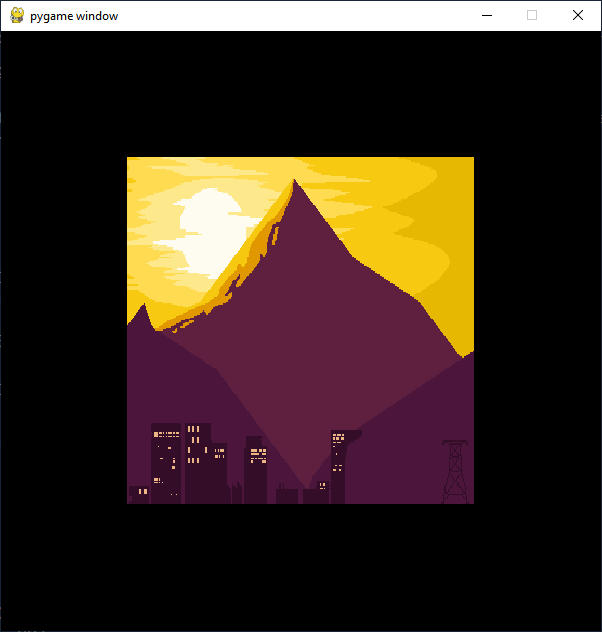
With the add_wall() method, the second and fourth vertex of the quadrilateral is automatically calculated to make a rectangle shape.
For example:
>>> scene.add_wall(image, (-1, 2, 1), (1, 0, 1))
>>> scene.render(screen, (0, 1, 0), 0, 90, 60)
>>> pygame.display.update()
Removing Surfaces from the Scene
The surfaces with the rm argument set to True are removed from the scene after each render.
If you need to remove all surfaces from the scene, use the clear_surfaces() method.
- Scene.clear_surfaces()
Clears all surfaces from the caster.
Note
This method is automatically called if the scene object is garbage collected.
Adding Lights to the Scene
By default, the lights are disabled, meaning that the scene is fully lit.
To use custom lights, use the add_light() method.
- Scene.add_light((x, y, z), intensity=1.0, red=1.0, green=1.0, blue=1.0, direction=(None, None, None))
Adds a light to the scene.
- Parameters:
position (tuple) – The position (x,y,z) of the light.
intensity (float) – The intensity of the light (1.0 by default).
red (float) – The red component of the light (1.0 by default).
green (float) – The green component of the light (1.0 by default).
blue (float) – The blue component of the light (1.0 by default).
direction (tuple) – The light direction (x,y,z) (None by default).
Note
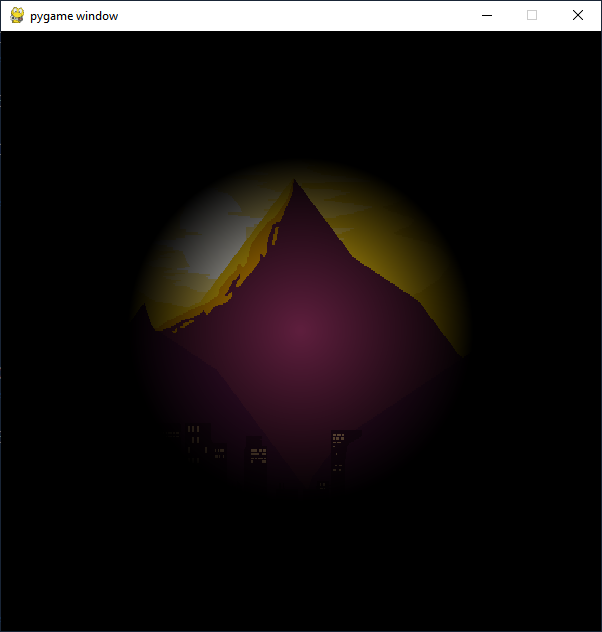
By default, the light is a radial light. If you want to use a directional light, set the direction argument.
Example with radial light:
>>> scene.add_light((0, 1, 1))
>>> scene.add_wall(image, (-1, 2, 1), (1, 0, 1))
>>> scene.render(screen, (0, 1, 0), 0, 90, 60)
>>> pygame.display.update()
Example with directional light:
>>> scene.add_light((-1, 2, 1), direction=(1, 0, 1))
>>> scene.add_wall(image, (-1, 2, 1), (1, 0, 1))
>>> scene.render(screen, (0, 1, 0), 0, 90, 60)
>>> pygame.display.update()
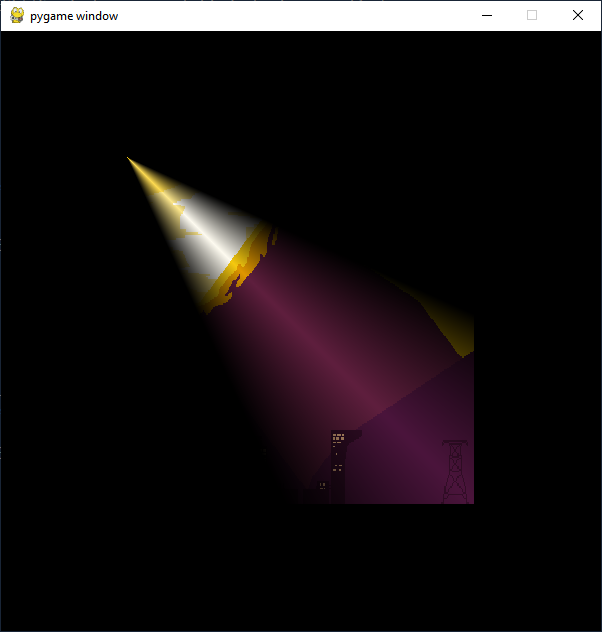
To remove all lights from the scene, use the clear_lights() method.
- Scene.clear_lights()
Clears all lights from the caster.
Calling this method will disable the lights until the add_light() method is called again.
Note
This method is automatically called if the scene object is garbage collected.
Render the Scene
You can now render the scene using the render() method.
- Scene.render(dst_surface, (x, y, z), angle_x=0.0, angle_y=0.0, fov=120.0, view_distance=1000.0, rad=False, threads=1)
Render the scene from the given position.
- Parameters:
dst_surface (pygame.Surface) – The destination surface.
pos (tuple) – The position of the camera.
angle_x (float) – The angle of the camera around the x axis (look up and down).
angle_y (float) – The y angle of the camera around the y axis (look left and right).
fov (float) – The field of view of the camera.
view_distance (float) – The view distance of the camera.
rad (bool) – Whether or not the angles are in radians (False by default).
threads (int) – The number of threads to use for the rendering (1 by default). Set to -1 to use the maximum amount of threads.
- Raises:
ValueError – If the given destination surface is not a valid surface.
The scene will be drawn over the destination surface.
The x, y and z arguments are the position of the camera.
The angle_x and angle_y arguments are the rotation of the camera.
The fov argument is the field of view of the camera.
The view_distance argument is the maximum distance that the camera can see.
The rad argument is a boolean that indicates if the angles needs to be converted to radians.
To use degrees, set this argument to False. To use radians, set this argument to True.
Be default, only one thread will be use to render the scene.
If you want to use multiple threads, set the threads argument to -1 or a positive integer.
Warning
This method might not be thread-safe.
You can also cast a single ray in the scene using the single_cast() method.
This method is useful to check if a point is visible from a specific position.
It will return the distance between the camera and the closest point in a given direction.
If no point is found, it will return the maximum view distance.
- Scene.single_cast((x, y, z), angle_x=0.0, angle_y=0.0, max_distance=1000.0, rad=False)
Compute a single raycast and return the distance to the closest intersection.
- Parameters:
origin (tuple) – The position (x,y,z) of the origin of the raycast.
angle_x (float) – The x angle of the ray around the x axis.
angle_y (float) – The y angle of the ray around the y axis.
max_distance (float) – The maximum length of the ray.
rad (bool) – Whether or not the angles are in radians (False by default).
- Returns:
The distance to the closest intersection. If no intersection is found, return the max_distance
- Return type:
float